How to Use Ripple Merge
Set it up once. Every automation email pulls the right content, including subitem data.
See it in 90 seconds
AI drafts the template, the automation resolves it, and the client in Spain gets it in Spanish — start to finish.
Before you start
- Install Ripple Merge from the monday.com apps marketplace. It asks for read access to your boards only — it never edits your data.
- Automations: emails are sent by monday's own Send Email automation action, so your monday.com plan needs automations.
- Nothing else to set up — no external accounts or API keys, and the AI features work out of the box.
What's inside
- Ripple Merge board view — create and edit the email templates for that board.
- Ripple Merge Templates (left sidebar → Apps) — every template in your account in one place: search, edit, and copy templates between boards.
- "Ripple Merge — Resolve Template" automation action — fills a template with an item's data when your automation runs.
Step 1 — Add the Ripple Merge view to your board
On the board you send emails from: click + Add view → Apps → Ripple Merge.
Step 2 — Build your template
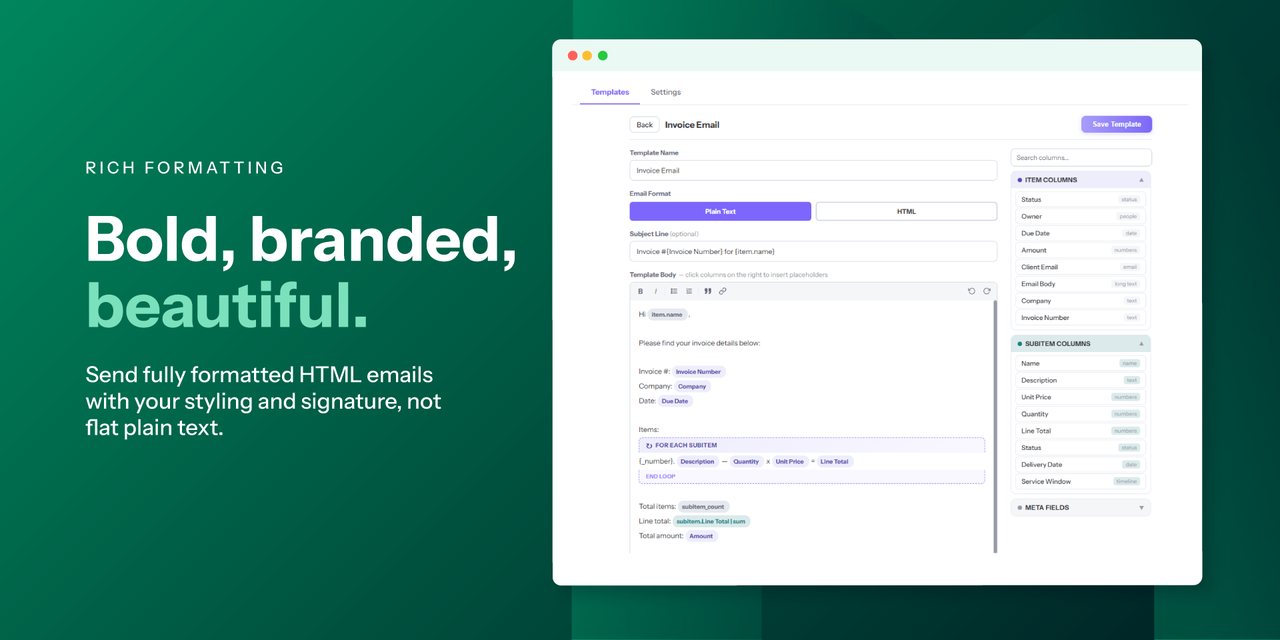
Click + New, then click any column on the right to insert it as a placeholder.
- Item columns insert instantly — e.g.
{Company} - Subitem columns ask how you want them: every row, one specific row,
a total (
sum,avg,count,min,max), or a repeating loop block - Date columns offer 13 formats — e.g. 31st March 2026 or 03/31/2026
- Choose Plain Text or HTML for rich formatting
Step 3 — Add Ripple Merge to your automation
In your board's workflow builder, add the action "Ripple Merge — Resolve Template" after your trigger and pick the template you just created from the dropdown.
Step 4 — Chain monday's Send Email action
Add monday's Send Email step right after. Map the fields:
- Subject → Resolved Subject (from the Ripple Merge step)
- Message → Resolved Content
Ripple Merge AI
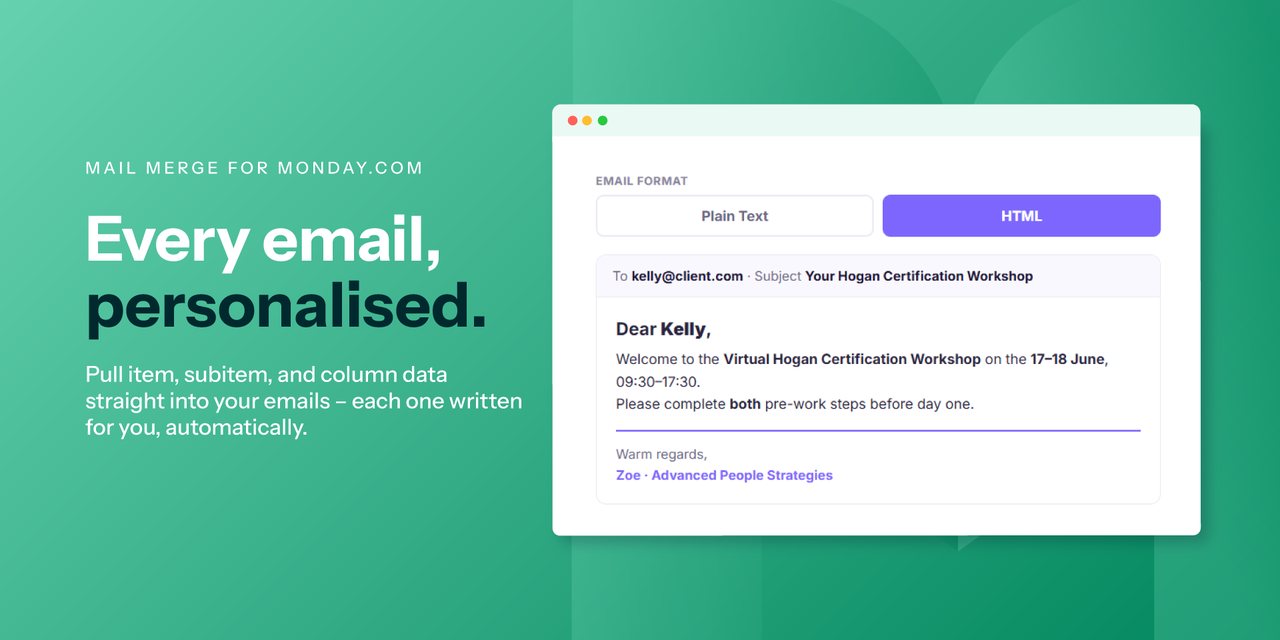
Every AI feature is optional — the app works fully without them. With them, the learning curve disappears:
- Write with AI — click ✨ Write with AI in the editor and describe the email ("order confirmation listing every line item with a total, friendly tone"). You get a complete template wired to your real columns — subitem loops, totals and formatted dates included.
- Starter ideas — on a board with no templates yet, click Suggest templates with AI for three ideas tailored to your columns; one click drafts any of them.
- Refine & translate — the ✨ AI menu makes any template friendlier, more formal, shorter or grammar-perfect, or translates it into six languages. Placeholders always survive.
- AI subject lines — three suggestions generated from your email body.
- AI Summary at send time — insert
{ai.summary}from Meta Fields and every email opens with a fresh 2–3 sentence summary of the item and its subitems, written from the live data when the automation fires. - Your client's language, automatically — set ✨ Send Language to a Country or Language column and each email is AI-translated into that recipient's language at send time. Translations are cached per template, and an empty column simply sends the template's own language.
- Fix columns with AI — if a template shows missing-column warnings after a board change, the row menu's ✨ Fix columns with AI remaps the placeholders onto your real columns for review.
{ai.summary}
placeholder and the Send Language column value are the only send-time exceptions, both
processed transiently and covered in the
privacy policy.Placeholder cheat sheet
| What | Syntax |
|---|---|
| Item column | {Amount} |
| Item name / board name | {item.name} · {board.name} |
| All subitem values | {subitem.Description} |
| One subitem row | {subitems[0].Description} (first row) |
| Total across subitems | {subitem.Line Total | sum} |
| Loop over subitems | {#each subitem} {Description} — {Line Total} {/each} |
| Loop with filter | {#each subitem where Status = "Paid"} … {/each} |
| Formatted date | {Due Date | date:ordinal} → 31st March 2026 |
| Subitem count | {subitem_count} |
| AI summary at send time | {ai.summary} |
FAQ
Where do I manage templates across boards?
Open Ripple Merge from the left sidebar (Apps) for the account-wide view — search, edit,
and copy templates to any board.
A column shows a warning badge?
The template references a column that no longer exists on that board. Use
✨ Fix columns with AI in the template's row menu to remap it, or open
the template and re-insert the column.
Need help?
Email support@coderippletech.com — happy to help
you wire up your first workflow.